Google just released URL inspection as part of the Search Console API. I check for issues periodically in Search Console but it would be great to just get an email when an issue crops up. The Apps Script project below does just that by monitoring URLs from your sitemap for changes and sending an email whenever anything is detected. The Search Console API has a limit of 2,000 calls per day and Apps Script also imposes a time limit on scripts. The approach I take below assigns a random day of the week to each URL to limit the number checked on each run. Depending on the size of your site you may want to remove this check (or go the other way if you have a large number of URLs to monitor). Follow the steps below to get your own monitoring spreadsheet up and running.
Google Sheet
Create a new spreadsheet in Google Drive and call it anything you want. Rename an empty sheet to 'gsc', this sheet will store the index data. You don't need to make any other changes to this sheet.
Choose Apps Script from the Extensions menu. This will open up the script editor for your spreadsheet. I find that sometimes the editor opens with the wrong account if you're signed into more than one. If that applies to you, check quickly to make sure the right account is selected. With Code.gs selected copy and paste the script below replacing the default function:
There are a few configuration variables to enter at the top. AlertEmail is the email address to notify when index status changes are detected. SitemapUrl is the full URL of your sitemap. The current implementation does not support sitemap index files, this needs to be a regular sitemap containing URLs. SearchConsoleProperty should be the URL of the site to monitor, or sc-domain: followed by the domain for domain properties (for this site sc-domain:ithoughthecamewithyou.com).
Click Project Settings (the cog in the left hand menu of the script editor) and copy the Script ID. Make a note of this for later.
Create a new project (click the drop down to the right of 'Google Cloud Platform Console' and then New Project). Pick any name you like.
Once the project is created, find APIs and Services in the left hand menu and choose Library.
Search for Search Console, click on the Search Console API and then click Enable.
A new screen will load, click Credentials in the left hand menu.
Click Configure Consent Screen and choose the internal type.
Fill in the required fields - application name and contact emails.
Add the ./auth/webmasters.readonly scope for readonly access to Search Console data.
Once the consent screen is complete click Credentials in the left hand menu again.
Click Create Credentials at the top and choose OAuth Client ID.
Choose Web Application.
Add https://script.google.com/macros/d/{SCRIPTID}/usercallback to authorized redirect URLs, replacing {SCRIPTID} including the brackets with the Apps Script ID you noted above.
Make a note of the Project ID.
Complete the Apps Script
Return to the Apps Script project and find the settings page. Set the GCP project to the project ID you noted above. Also on this page check the Show "appsscript.json" manifest file in editor option.
Go to the code editor and open appsscript.json. Add the following line:
Make sure the script is saved and close the script editor window. Reload the spreadsheet. Once the reload completes you should have a Search Console menu at the top of the spreadsheet. Choose Update Data from the Search Console menu. This will run for a few minutes and then populate the 'gsc' sheet with your URL data. See UrlInspectionResult in the API documentation for more information about the meaning of each field. You should also get a lengthy email with a notification for each URL that was inspected. This will continue for the first week and then you'll only get updates for interesting status changes.
Scheduling
Now the project is working, open the script editor again (Apps Script from the Extensions menu) and open Triggers (the clock icon in the left hand menu). Click Add Trigger at the very bottom right of the window. Select runUpdate as the function to run. Change event source to time-driven, and then select day timer and an hour to run the script. Lastly click Save. Your Google Search Console monitor will now run every day, and if the index status of a page changes you'll get an email about it within a week. The spreadsheet will also come in handy for other analysis and reporting.
Troubleshooting
You might need to tweak the script if you start hitting limits. The URL inspection API currently has a 2,000 call / day quota. Apps Script will only run for around 7 mins on a free account and 20 mins if you have Google Workspace. If either of these limits apply you could modify the 'checkDay' logic to use day of the month (or year, or ...) to reduce the number of URLs inspected on each run. If you need to do this remember to update the Check Day column on the 'gsc' sheet as well.
The script assumes that the URLs you want to monitor are in your sitemap. If this is not the case you can add URLs to the sheet directly. As long as they are part of the configured property you will still get results. If you use this method you might want to comment out the updatePagesFromSitemap() call in runUpdate() to save time.
If anything else goes wrong please leave a comment below and I'll do my best to help you.
Updated 2022-02-08 17:40:
After a couple of days I have a full dump of my sitemap from the page index status API. I wrote this script for the alerting possibilities but couldn't resist some analytics once the dataset was complete.
The chart above shows sessions vs days since the last Google Crawl. Pretty stark - Google keeps a close eye on the pages it sends traffic to and not so much on the others.
I set lastmod honestly and there is good news here. I could only find two cases where Google had not crawled the page since the last modified date. So when the sitemap says a page has changed the odds are good that it will get another crack at the index. The two exceptions are unusual posts that are updated hourly and weekly respectively and both have been crawled recently.
The breakdown of index status matches Google Search Console pretty well but I have a handful of pages that are 'Indexed, not submitted in sitemap', even though they are in the sitemap and no such status is shown on Search Console. I don't know if this is a glitch in the index status API or something to do with how the pages were discovered. Some light searching suggests that this message is usually what you would expect it to be.
Lastly, updating the sheet for my site is more bound by script execution time than the API limits. I changed it to run every hour and instead of partitioning by day of week I used a random hour of the day which means I check every URL at least once every 24 hours.
Updated 2022-04-24 10:50:
I just updated the code and post above. I've had occasional issues where updating the sheet failed which caused the next run to go back to the beginning with no saved index status. To reduce the chance of this happening I've added some retry logic and also improved the speed of the sheet load and save functions. I also had a comment on the code that suggested an easier way to handle OAuth and have incorporated this in the new version.
(Published to the Fediverse as:
Monitor page index status with Google Sheets, Apps Script and the Google Search Console API #code#searchconsole#appsscript#google#sheets#drive#seo How to use Apps Script in Google Sheets to automatically monitor index status in Google Search Console and get an email alert if anything changes.)
By Robert Ellison. Updated on Tuesday, January 25, 2022.
Catfood Earth for Android 4.20 adds support for Material You, the custom color scheme introduced in Android 12. By default every wallpaper update will also subtly change your system color palette. You can override this from settings -> Wallpaper & style and switch back to basic colors if you don't like the Catfood Earth colors. This update was surprisingly painful. You can install Catfood Earth from Google Play, or for existing users it will automatically update in the next day or so.
By Robert Ellison. Updated on Monday, September 29, 2025.
I have been trying to update Catfood Earth for Android to support Material You in Android 12. This sets a color palette from your wallpaper and other than making notifications harder to manage seems to be the main thing that Google has been working on for the past year. Live wallpaper isn't automatically supported, it's up to you to tell the system about your colors.
Happily there is an overridable OnComputeColors in WallpaperService.Engine, and you can create a WallpaperColors object from a bitmap so this looked like a five minute update. Hahahahahahhahahahah.
I spent a few weeks waiting for the Android 12 SDK to be available in Xamarin. I found some pointers to their GitHub and assumed it would show up there and so waited a few weeks. It still isn't there. I found some article about forcing it to install in Visual Studio 2019 that didn't work for me, and then realized that Visual Studio 2019 update checks were crashing. While trying to fix that I found that Visual Studio 2022 has been released and this installs with the Android 12 SDK!
These days I work on side projects when I get the occasional free hour. Almost inevitably that hour is consumed with updating two or three things and then hoping that the next time I get some time at least I'll be ready to go. But when that hour arrives I'm back to updating again.
So finally I have the right SDK and drop in an OnComputeColors and a call to NotifyColorsChanged when my wallpaper is updated. Time to start testing. The good news is that Material You is now working with Catfood Earth selected as the current wallpaper. The bad news is that every time I call NotifyColorsChanged the launcher disappears and I'm just left with the wallpaper and no icons or search box. Probably not a good experience. I try moving the NotifyColorsChanged call around to different points in code and it makes no difference. This simple update is rapidly spiraling from minutes to days to weeks.
Maybe it's some Xamarin bug, or something in Android 12 or maybe a change in the solemn contract between live wallpaper services and the rest of the system. Can't find any hint of any of this on the Internet.
It's also possible that the bitmap I'm passing is too large or too complex or too something else. So let's try just sending back a simple WallpaperColors in OnComputeColors and see if that helps.
The Android documentation for WallpaperColors suggests that you can construct it from three colors which seems sensible. The Xamarin implementation takes ColorObject instead of Color. What is a ColorObject? The sparse Xamarin documentation suggests that it has an empty constructor that creates an opaque black color and then properties like Red that are read only. So an immutable black? That can't be right? When constructing a color the constructor would seem like a great place to tell the class what color it is. Failing that, a FromColor or FromArgb would seem to follow the right sort of convention. But no. You need to find ValueOf. To create a color that is a class and not a value. Sigh. Maybe that is some kind of deep Android convention that I would just know if I did this more often than once a year or so.
Although, maybe most Google Developers can't figure out how to make a non-black color and that's the origin of Material Design 2. Everything else is just marketing rationalization on top of a terrible API.
Finally I have a simple WallpaperColors to test with but my build has broken. At some point while figuring out how to get a ColorObject that isn't black I thought a NuGet package would help. My project is now completely broken. My experience with touching NuGet is that you can either spend several days unpicking the carnage or just start over. Git reset --hard HEAD it is then.
After quickly reimplementing the changes so far, returning a vanilla WallpaperColors object works... and so does the FromBitmap version. So 90% chance that I bodged something subtle the first time and didn't make the mistake on the second pass. 10% chance it was something strange in Visual Studio.
(Published to the Fediverse as:
The Secret Diary of a Xamarin Android Developer, Aged 48 1/3 #code#android#xamarin#catfood#earth An adventure in persuading Android live wallpaper to support Material You colors via the magic of Xamarin and weeks of frustration.)
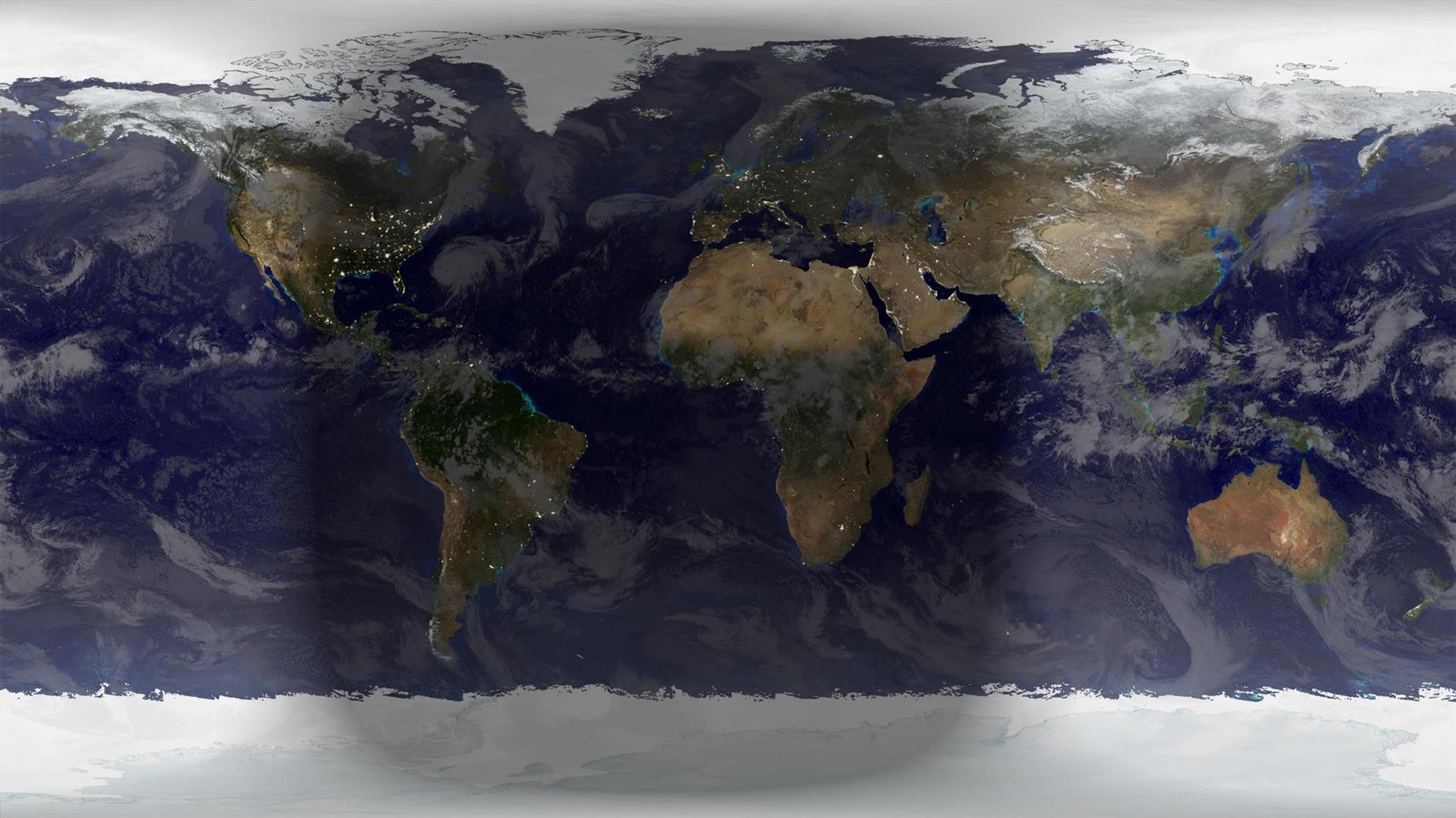
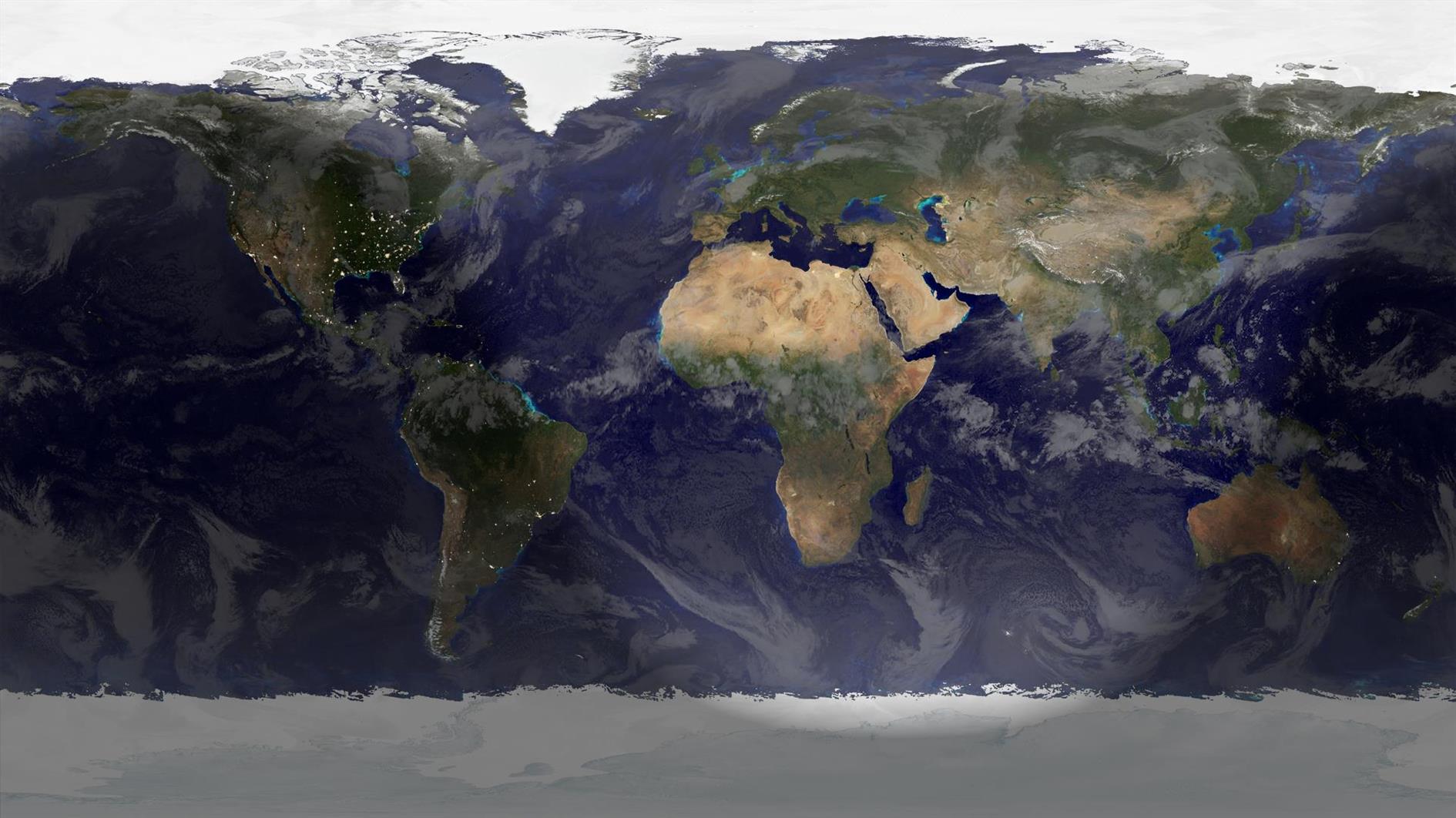
Winter Solstice 2021 rendered in Catfood Earth (15:59 UTC, December 21, 2021). Winter begins in the northern hemisphere, summer if you happen to be south of the equator.
By Robert Ellison. Updated on Saturday, February 19, 2022.
Catfood WebCamSaver 3.26 is available to download.
This update includes the latest list of webcams. It has also been updated to use .NET 4.8 which means it will install with no additional downloads needed on Windows 10 and 11. The installer is now signed. You might get a warning from Defender about the program being infrequently used, you will need to ignore this to install. Lastly WebCamSaver will now automatically check for updates so you'll get a desktop notification when a new version is available.
This update includes the 2021d time zone database.
After procrastinating for far too long I have also migrated to .net 4.8 and renewed my code signing certificate. You'll get at least one less warning when installing and you no longer need to enable .net 3.5 on Windows 10 which was a pain. This shouldn't make any difference but please let me know if you have any trouble installing or running this version.
Catfood WebCamSaver is a Windows screen saver that streams live views from random webcams around the world. Download for Windows. You can choose to display 1, 4 or 16 webcams at the same time, and WebCamSaver fully supports multiple monitors. Catfood WebCamSaver was first released in 2004.
When you install Catfood WebCamSaver a shortcut is created to Screen Saver Settings. You can search for Catfood WebCamSaver Settings and run the shortcut, or open Screen Saver Settings directly (on Windows 10, Start -> Settings -> Personalization -> Lock screen -> Screen saver settings). From Screen Saver Settings make sure that Catfood WebCamSaver is selected and then click Settings. On the Windows settings dialog you can also choose how many minutes to wait before starting the selected screen saver and if the login screen should be displayed when the screen saver exits.
Catfood WebCamSaver Settings has three tabs:
General
Under Description choose if the description of the webcam and the local time if available should be displayed. Click Font to pick the font, color, and optional outline color to use for the description and time.
Under Display choose the number of webcams to show at the same time (1, 4 or 16), how often to switch to a new webcam and how often to refresh the webcam image.
Under Offline Display you can choose a fallback screensaver to start if the Internet is not available.
Webcams
Please note that recent releases of WebCamSaver will delete and recreate the webcam list on install. This means you will lose any customization of the list on upgrade. See the import and export instructions below to back up any changes you have made.
The Webcams list shows the current library of webcams. Click the column headers to sort (and click again to sort in the opposite direction). You can enable to disable a specific cam using the checkbox in the list.
Click Add to enter details for a new webcam.
When a webcam in the list is selected click Open to launch the web page associated with the webcam, Edit to update details or Delete to remove it from the list entirely.
Click Delete All to remove all webcams from the list.
Click Enable All or Disable All to toggle the checkboxes for all webcams in the list.
You can save your customized list by clicking Export and restore it by clicking Import.
Advanced
If you prefer day (or night) scenes you can set a local time range here. If this option is enabled webcams where the time zone is unknown will never be displayed.
Click Proxy Settings to configure a proxy server.
Catfood WebCam Browser
Catfood WebCam Browser is a companion application installed with WebCamSaver. When you open WebCam Browser it will start showing a random webcam from the library.
Pick Cam opens a window where you can select a webcam to view from the full list. You can sort the list (click any column header, click again to sort the opposite direction). There is also a filter that only shows webcams matching text that you enter.
Random Cam will select a new webcam at random from the list and start streaming images.
Control Cam launches a URL where you can control the currently selected webcam (if available).
About shows the version and copyright information for the application.
Installation and Support for Catfood WebCamSaver
Catfood WebCamSaver requires version 4.8 of the .NET Framework. You almost certainly have this already and the installer will download it if necessary. The installer for Catfood WebCamSaver is digitally signed. You may get a warning about it being infrequently used which you will need to ignore to install.
For support please visit this post, check to see if your issue has already been addressed and if not leave a new comment.
Customer Reviews
“We LOVE your screen saver. I've seen others try this idea, but never quite seemed to get it right.”
Buddy King
“The other day I watched as a middle aged
couple in Japan took photos of the changing orange leaves along a calm street. I saw another couple, some tourists,
digging for their sunscreen on the beach in Kona, HI.”
MIT Center for Future Civic Media Blog
“I've been fascinated by your ‘saver’! It strikes me that so many different places & cultures seem to share some
common traits, so that each saver appears to be both familiar and exotic.”
Tom
“Very nice screensaver. One of the best I've seen.”
Andy Cant
“As a live webcam afficionado, I believe your product is the best, offering high quality resolution, reliable transmissions,
a nice blend of everyday street scenes with landscape views, and multiple cam shots filling the entire widescreen page.”
Oliver Garrison
“The new version is wonderful. I love being able to sort by age (so I'll never miss a new addition), and I love how easy it is
to select my favourites. Basically, I love everything about it. It's so much fun, and brings so much variety to the screen. I have
my favourite cams - The streets of Narbonne, that crazy Japanese wind-speed screen, the flag-filled car-park of a Dutch retail park -
But it's always fun to leave this screensaver on random and let it transport me to a completely new place.”
James
“I have to say that I am enjoying the sights that I am able to see on the web cam. The views are very clear and they are never
the same shots. I like being able to show off my new screensaver. Thank you.”
Isaac Adel
“Hi, I just love your web cam, I enjoy looking around the world at places I have never been to. Whoever thought up this idea, gets a 10/10 from me.”
Lynne
Catfood WebCamSaver 3.20 is available for download.
WebCamSaver is a Windows screensaver that shows you a feed from open web cameras around the world. It also includes WebCamBrowser which allows you to explore the directory and launch a URL where you can control each cam.
Version 3.20 includes an updated list of working webcams - if you are an existing user this will replace any current list the first time you run the updated version.
Catfood WebCamSaver 3.25 is available for download. This release includes the latest webcam list.
Catfood WebCamSaver 3.26
Catfood WebCamSaver 3.26 is available to download.
This update includes the latest list of webcams. It has also been updated to use .NET 4.8 which means it will install with no additional downloads needed on Windows 10 and 11. The installer is now signed. You might get a warning from Defender about the program being infrequently used, you will need to ignore this to install. Lastly WebCamSaver will now automatically check for updates so you'll get a desktop notification when a new version is available.
Catfood WebCamSaver 3.27
Catfood WebCamSaver 3.27 is available to download.
This release contains the latest webcam list and will upgrade any current set of webcams. I'm currently releasing updates for WebCamSaver every three months with the latest cams.
Catfood WebCamSaver 3.28
Catfood WebCamSaver 3.28 is available to download.
This release updates the webcam list.
Catfood WebCamSaver 3.29.0002
Catfood WebCamSaver 3.29 is now available to download.
This release updates the webcam list and includes a selection of new webcams provided by a long-time user.
Catfood WebCamSaver 3.30
Catfood WebCamSaver 3.30 is now available to download. This release contains the latest webcam updates.
Catfood WebCamSaver 3.31
Catfood WebCamSaver 3.31 is available to download. This includes the latest update to the webcam list.
Catfood WebCamSaver 3.22
Catfood WebCamSaver 3.22 is available to download. This release updates the webcam list.
A while back 2TB of storage seemed like plenty. Ooops.
It doesn't help that I'm a digital hoarder. I have everything from email mailboxes from the early 90s to obsolete Android virtual machines that will never run again. I've been forced to do something about it by filling up my backup drive.
My current backup strategy is to send everything to Google Drive. And then send all my pictures to Amazon Photos (free with Prime!). And then backup everything to an external drive (using my VSS tool) every month and stick it in a fire safe because Google and Amazon do not care about my files like I do.
I wrote a little utility to dump some stats to help me accept the problem and then do some tidying. Here's storage over time (imperfect, based on earliest of creation and last write time):
Some of that is driven by ever better cameras and increased willingness to shoot 4K video. Some of it is crazy projects that I forgot to tidy up after, like making a daily timelapse movie from a nest cam.
Here's a breakdown by file type:
Mostly media. New resolution, when I take 500 photos of my thumb I should delete all but the very best right after uploading instead of saving them in case I want to make some kind of thumb-animation later.
The most useful thing the utility does is dump out each folder with more than 1GB of files. That found a lot of cruft hiding in unexpected places (bye bye every frame of the 2017 eclipse that I accidentally left in Google Drive instead of my dedicated time lapse disk). I might improve this over time, but all of the above is available now as folder-insights on GitHub.
(Published to the Fediverse as:
Folder Insights #code#backup A tool that shows storage over time, and by file extension, and finds folders with more than 1GB of files. Windows, source on GitHub.)